Steps for Server Registration
We've put together a step-by-step guide, complete with actual screenshots, showing how to register your server with T6NetWork and publish your referral page.
Select "Server Integration" on My Page
My PageWhen you open it, you'll see a menu called "Server Integration." If you have a server thatType that connects directly via IP:port (address)Or,RealmsAt this point, the procedure changes.
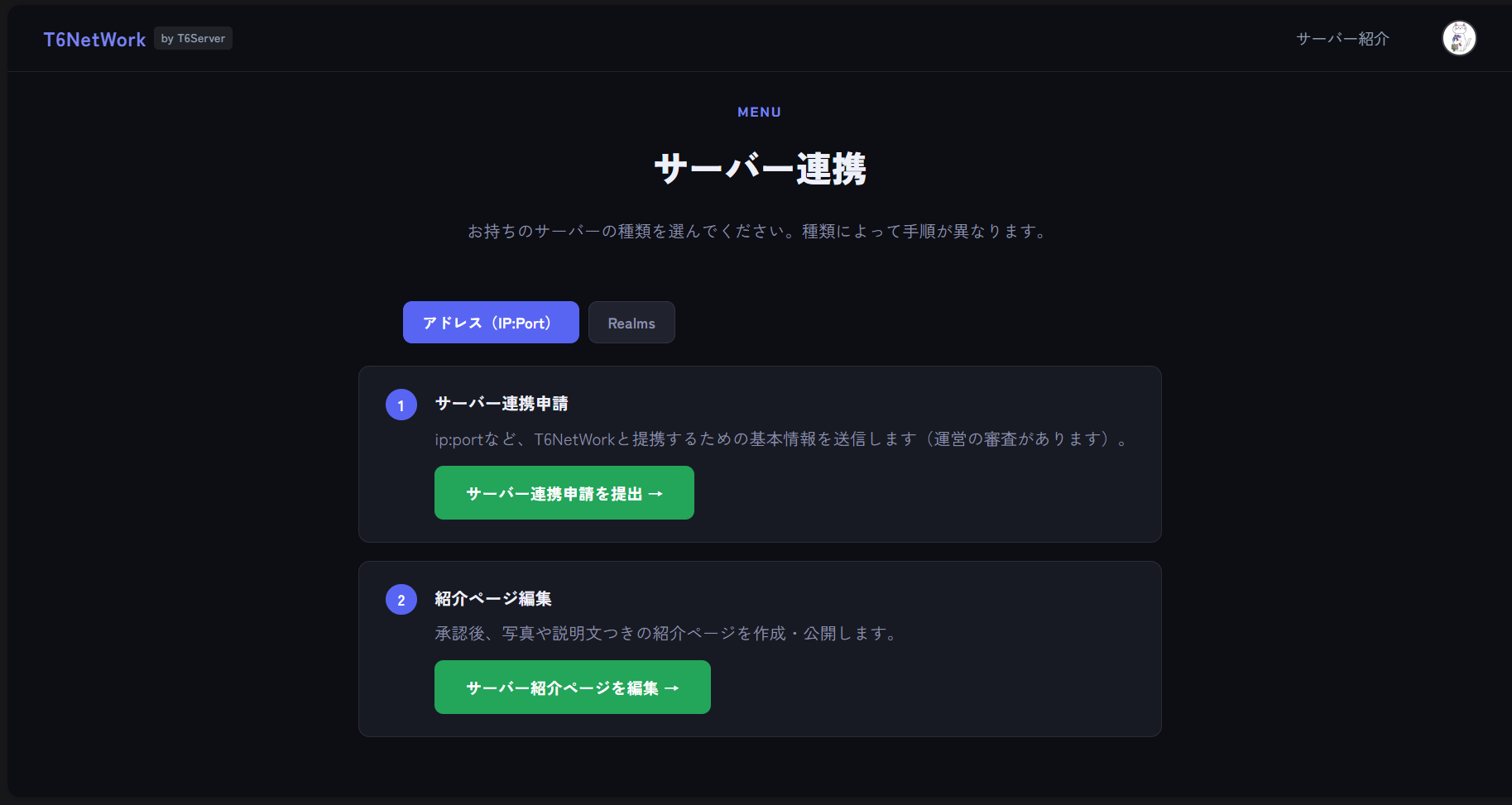
If you select an address (ip:port)
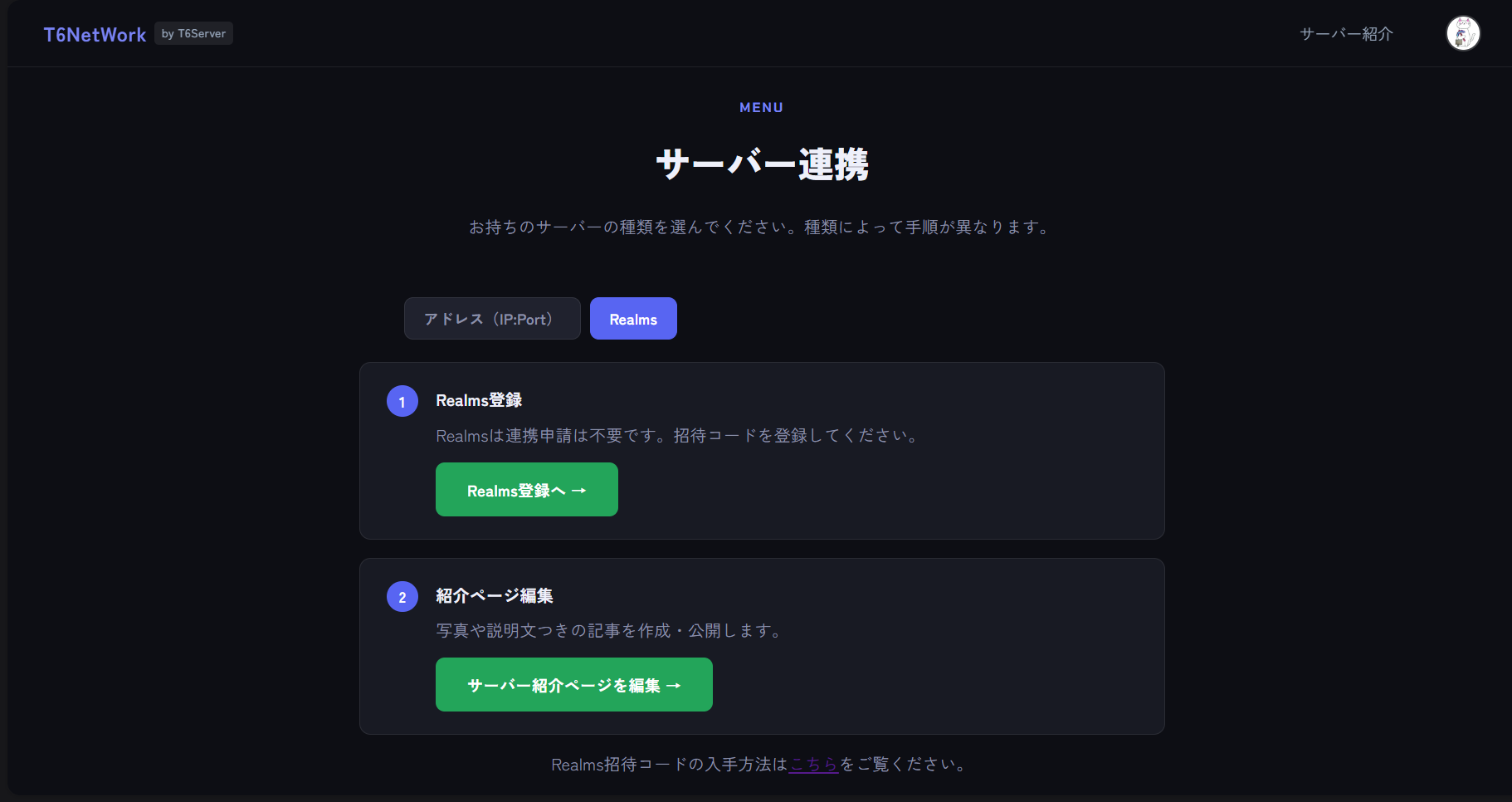
If you choose Realms
For email addresses: Server Integration Request
When you click “Submit Server Integration Request,” you will first proceed to Step 1: Register General Information. After entering the general server name, specifications, category, and description and submitting the information, you will automatically proceed to Step 2: Add Server. You can navigate between these steps at any time using the step indicators at the top of the screen.
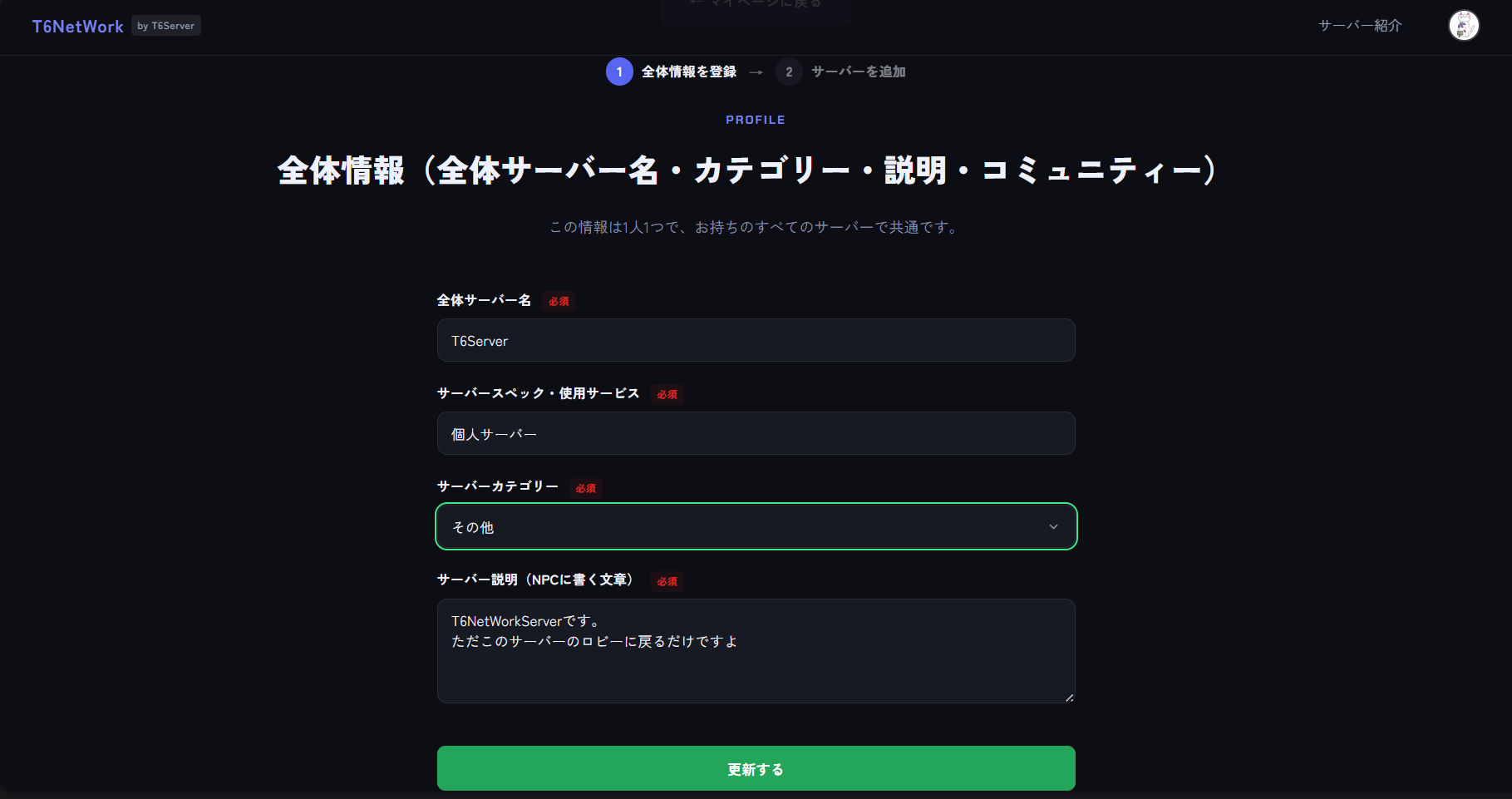
① Register General Information
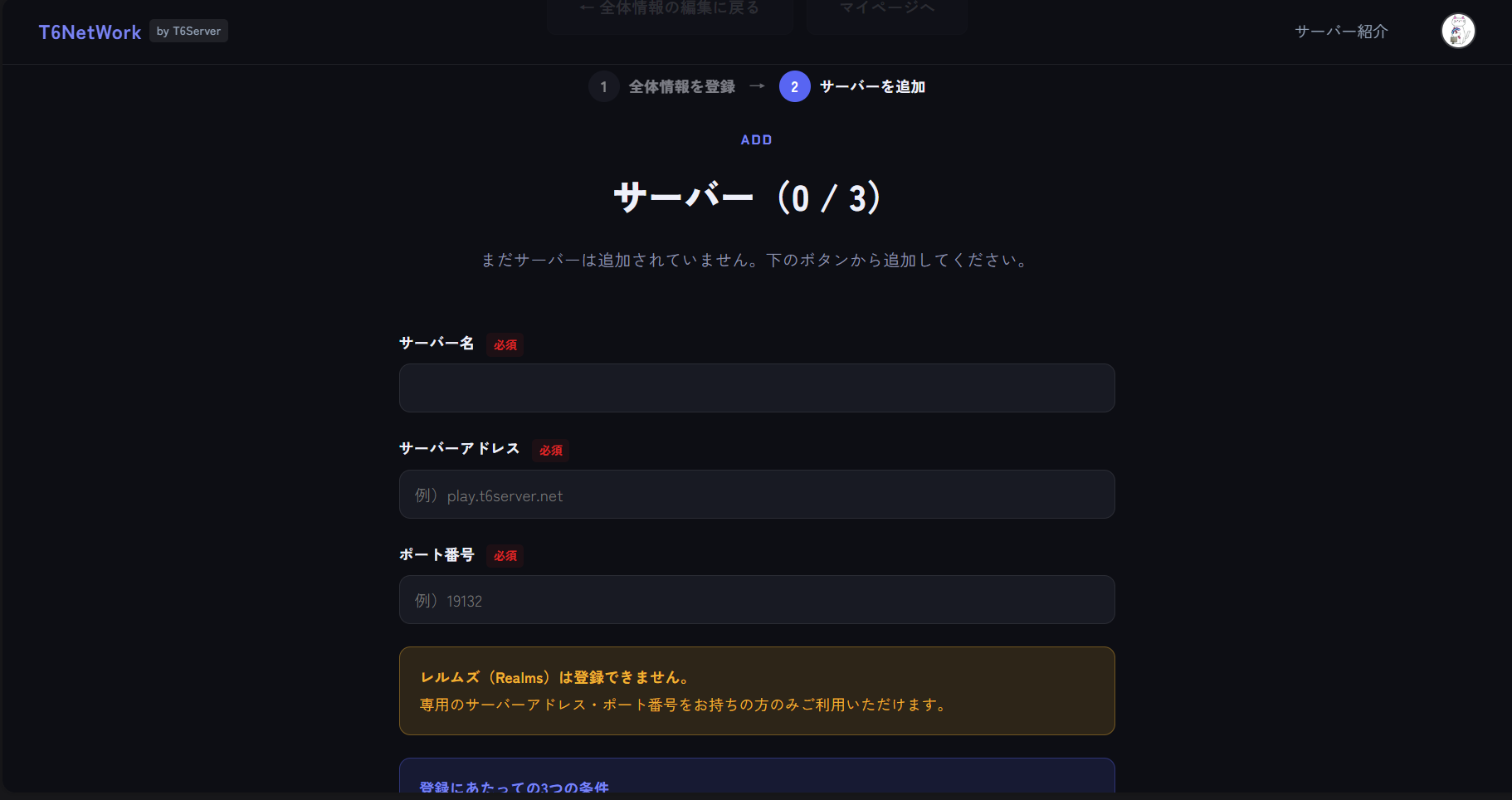
② Add a server (Servers you've already added are displayed as cards)
- T6NetWork Promotion: Please promote T6NetWork in your server's open chat or on Discord.
- Reporting Trolls: If trolling occurs on your server, please report it to T6NetWork as well. We will add the user to our blacklist and take appropriate action.
- Shared Use with Other Servers: We cannot provide dedicated servers for individual users. Please implement anti-trolling measures—such as whitelists and anti-cheat systems—on your own server.
After submission, your content will be reviewed by the administration. You can check the review status under "Submitted Content" on your My Page (Pending Review, Approved, Rejected). You cannot publish the introduction page until it is approved.
For Realms: Realms Registration
No integration request is required for Realms. Enter the invitation code (or invitation URL) via the “Register for Realms” link, then click “Confirm” to check the service status. You can only register invitation codes that have been confirmed as active (invalid codes cannot be saved).
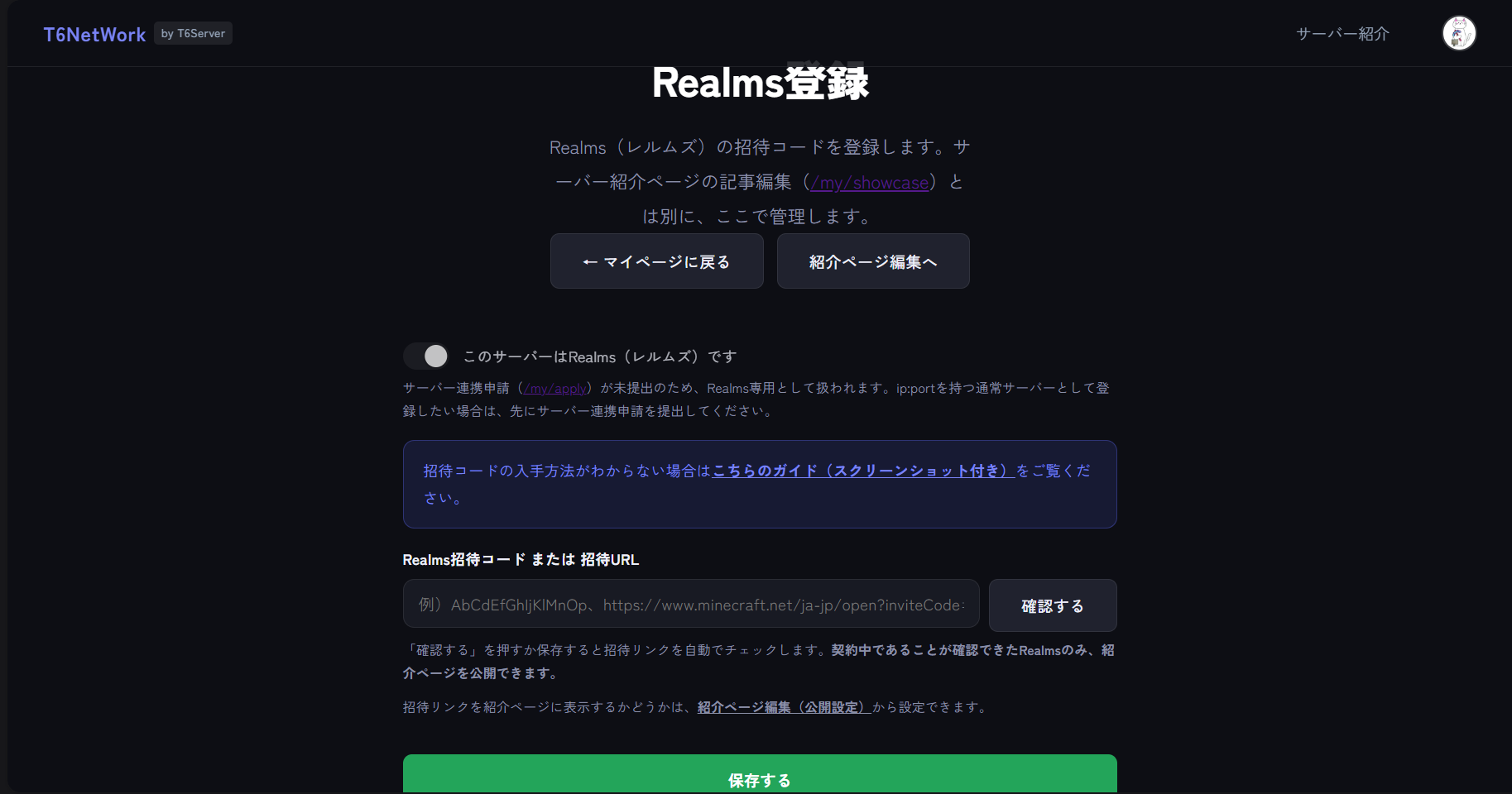
Realms Registration Page (This is a different screen from the "Edit Introduction Page" screen.)
If you're not sure how to get an invitation code, please check out this guide (with screenshots).
Edit and publish the introduction page
You can create a showcase page with photos and a description by editing the Server Showcase page (/my/showcase). Once published, it will appear in the Showcase page list. You can also manage all publication settings—such as “Show Server Address,” “Cross-Play Support,” “Show Realms Invite Link,” and “Publish”—all in one place on this page.
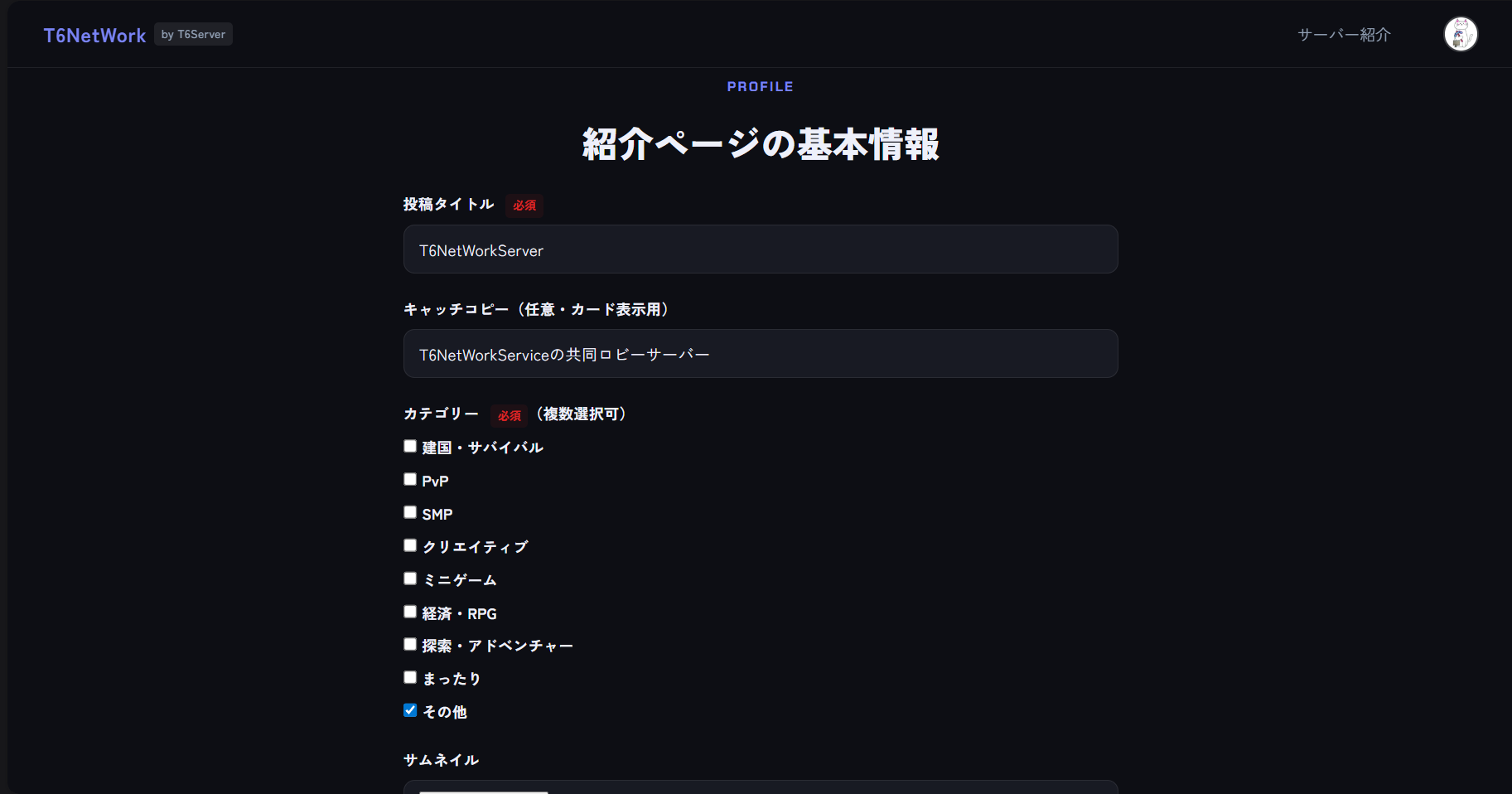
Basic Information Fields on the Showcase Page Editor (/my/showcase)
/upYou can republish it using a command.Frequently Asked Questions
Q. What is the difference between a “Server Integration Request” and a “Server Introduction Page”?
A. The “Server Integration Application” (/my/apply) is a request to partner with T6NetWork using an IP address and port, and it requires approval from the administration. The “Showcase Page” (/my/showcase) is a public article page that you create after approval. Please submit and have your integration application approved first, and then edit the showcase page.
Q. Can I register on Realms as well?
A. While a “Server Linking Request” (linking via IP:port) is not supported, if you select “Realms” under “Server Linking” on your My Page and register your invitation code via “Realms Registration,” you can proceed directly to editing your referral page without submitting a linking request.
Q. My Realms invite code says "Invalid," and I can't register
A. The invitation code may have expired (or you may have entered it incorrectly). Please check the status of your invitation and re-enter a valid invitation code or invitation URL. You cannot register as a Realms if the code is deemed invalid.
Q. How long does the review process take?
A. It depends on the content, but please allow a few days. If it's urgent, please reach out to us on the Discord support server.
When you're ready,
Please start by going to "Server Integration" on your My Page.